After you create a mailbox, you can follow these steps to set it up in Mac Mail:
1. Open your Mac’s Mail app
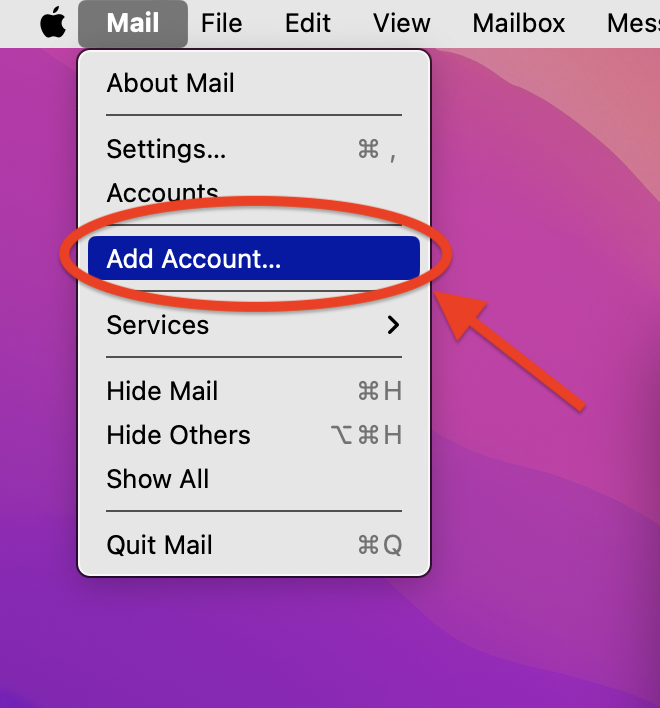
2. In the top navigation bar, click Mail
3. Select Add Account from the drop-down

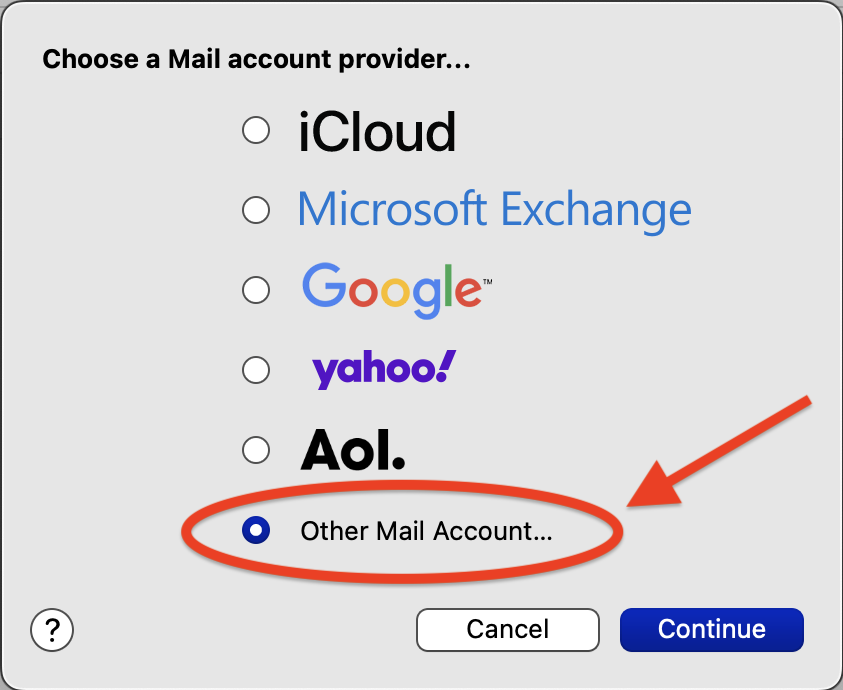
4. Select Other Mail Account, then click Continue

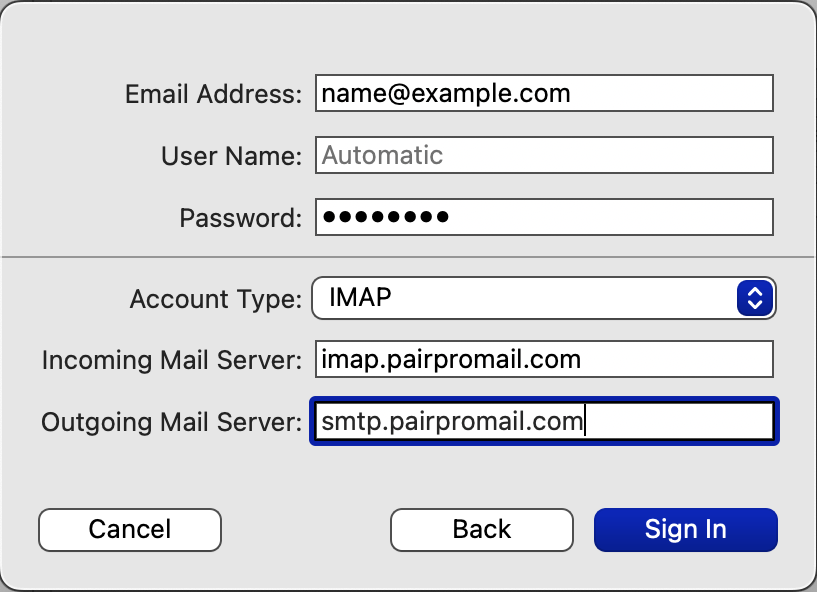
5. Enter the following information:
| Name | This name will appear next to your address when you send email |
| Email Address | This is the email address for the mailbox |
| Password | This is the mailbox password |


6. Click Sign In
7. Enter the following information:
| User Name | This is the email address for the account |
| Account Type | Choose between IMAP or POP * IMAP: Email is stored on the server and synced between devices * POP: Email is stored on the device and not synced between devices For more information, check out: IMAP vs POP: Which Should You Use? |
| Incoming Mail Server | If you chose IMAP, use: imap.pairpromail.com If you chose POP, use: pop.pairpromail.com |
| Outgoing Mail Server | smtp.pairpromail.com |

8. Click Sign In
9. Select the apps you want to use with the account

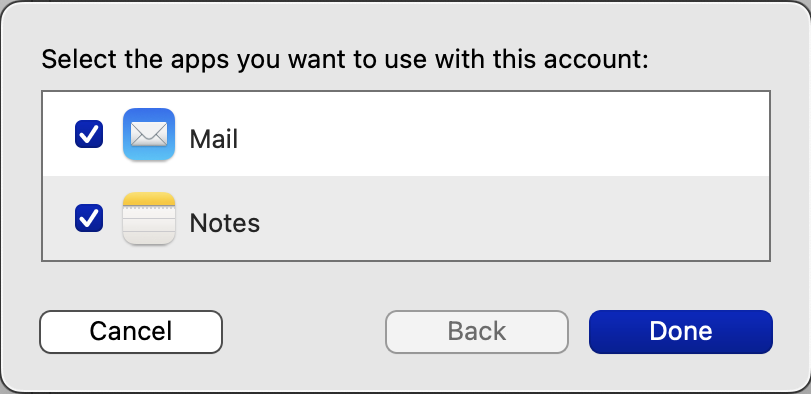
10. Click Done