If you have not already created a mailbox, please visit our guide to Adding Pair Pro Mail to Your Domain.
After you create a mailbox, you can follow these steps to set it up in Outlook:
1. Open the Outlook app.
2. If this is your first time using the Outlook app, skip to Step 5.
If you have used the Outlook app before, open the menu from the upper left.

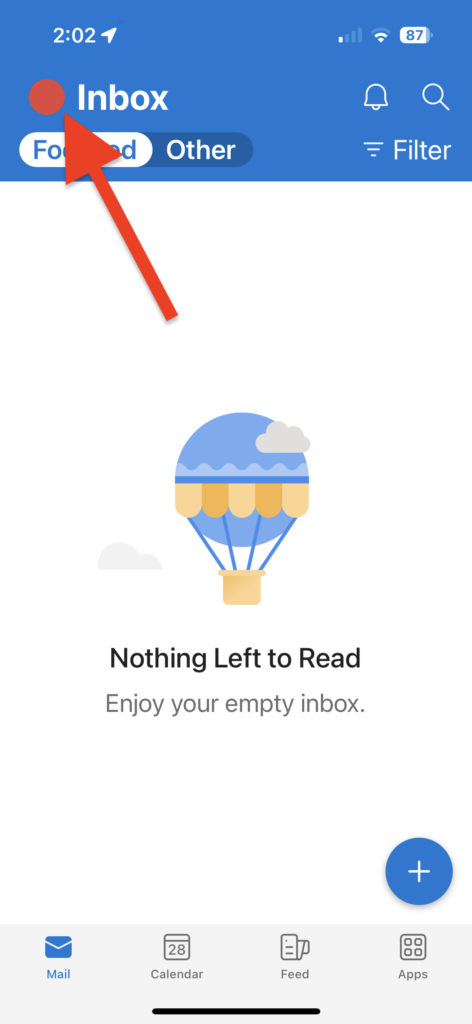
3. Tap the envelope with the plus icon.
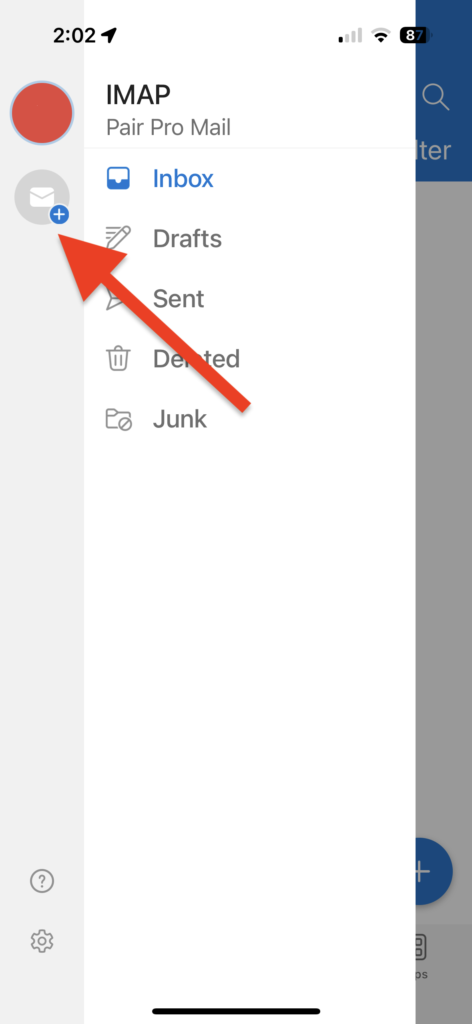
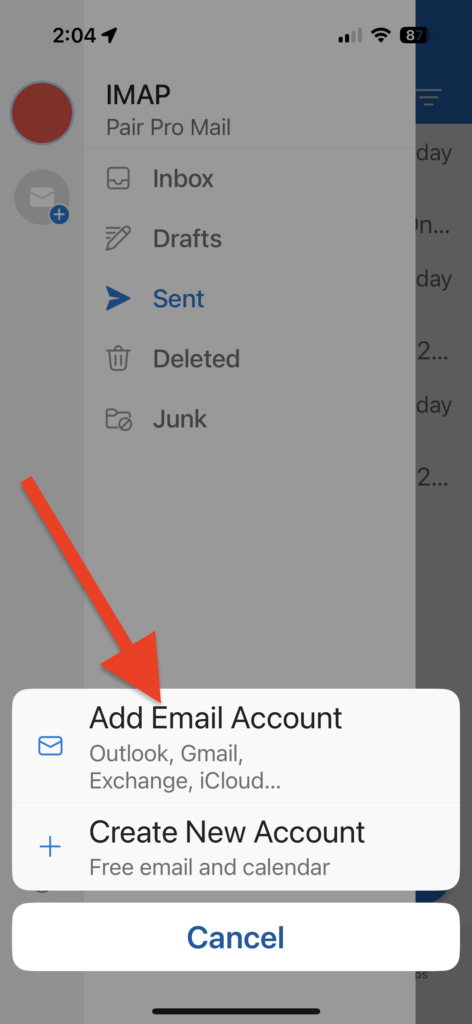
4. Select Add Email Account.
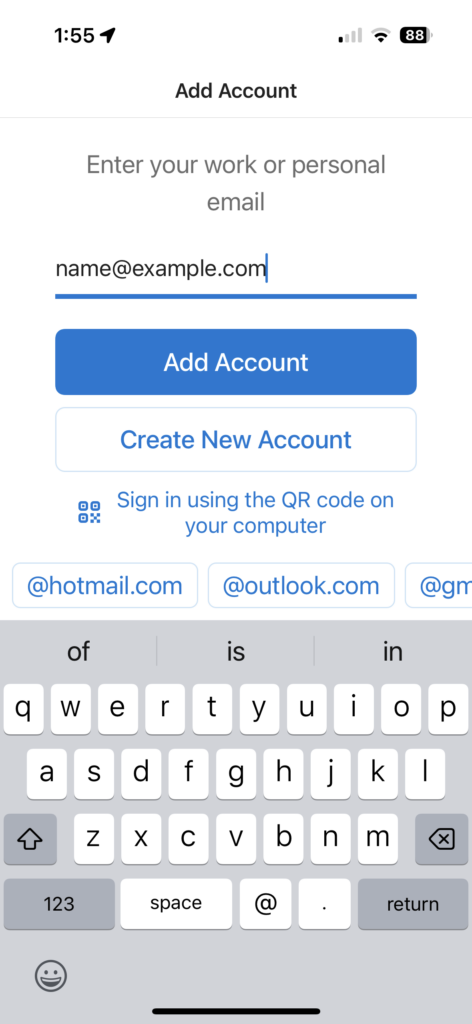
5. Enter your email address, and tap Add Account.
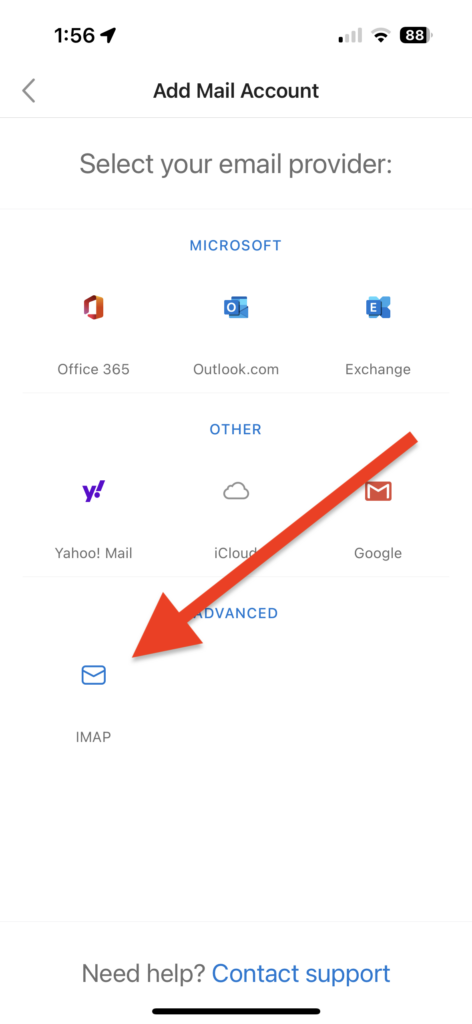
6. Tap IMAP.
7. Enter the following information:
| Email Address | This is the email address for the mailbox |
| Display Name | This name will appear next to your address when you send email |
| Description | This will help you identify your account in the Outlook interface |
| IMAP Hostname | imap.pairpromail.com |
| IMAP Port | Leave this blank or enter 993 |
| IMAP Username | This is the email address for the mailbox |
| IMAP Password | This is the password for the mailbox |
| SMTP Hostname | smtp.pairpromail.com |
| SMTP Port | Leave this blank or enter either 465 or 587 |
| SMTP Username | This is the email address for the mailbox |
| SMTP Password | This is the password for the mailbox |

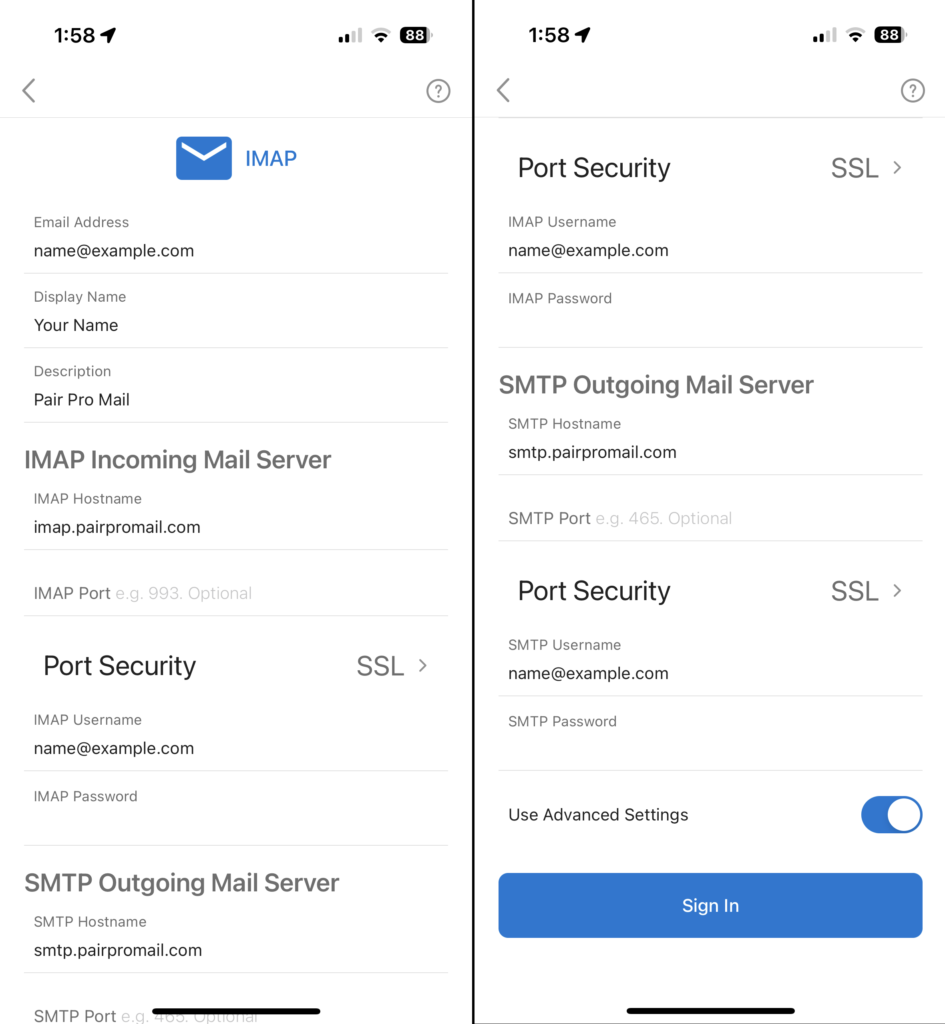
8. Tap Sign In.